

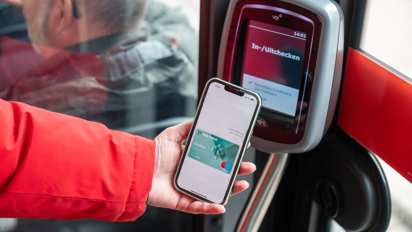
Check in and out faster with your phone
Check in and out without having to unlock your phone every time
Express Public Transportation & Public Transportation Payments
Do you travel using OVpay and pay with your cell phone? If so, you can enable a setting that makes checking in and out even easier.
Starting October 29, 2026, this feature will be available on all HTM trams and buses.
Have you enabled this feature? If so, you won’t need to unlock your phone every time before checking in or out. Just hold your phone near the card reader to check in or out.
On Apple devices, this is called Express-OV. In Google Wallet, you’ll find this option under “Public Transit Payments.”
Benefits
You don't have to unlock your phone first when checking in or out;
You don't have to use your PIN, fingerprint, or facial recognition every time;
You can get on and off faster.
This setting applies only to payments on public transportation. For other payments, your phone’s normal security settings remain in effect.

Enable Express Public Transit on an iPhone
Do you use Apple Pay? If so, you can set up a debit card for Express-OV.
Here's how:
- Open Settings on your iPhone.
- Select Wallet & Apple Pay.
- Select Express-OV card.
- Select the debit card you want to use for public transportation.
You can choose a different debit card for public transportation than the one you normally use to pay in stores.
For more information, visit Apple:
Using Express Mode on your iPhone or Apple Watch
Check in Faster with Google Wallet
Do you use an Android phone with Google Wallet? If so, you can turn off the additional verification for public transit payments.
Here's how:
- Open the Google Wallet app.
- Tap your profile photo in the top-right corner.
- Select Wallet Settings.
- Select Verification Settings.
- Select Public Transportation Payments.
- Turn off " Authentication Required."
After that, you won't have to keep unlocking your phone every time you check in or out with your debit card in Google Wallet.
For more information, visit Google:
Using Google Wallet for Transit
Always check in and out using the same device
Are you checking in with your cell phone? Then be sure to check out with the same phone.
So don’t use your phone to check in and then your physical debit card or smartwatch to check out. For OVpay, these are considered different payment methods. Your trip will not be properly recorded.
Ticket inspection on the tram or bus
A ticket inspector may ask to see your ticket.
If so, unlock your cell phone or smartwatch and make sure the debit card you used to check in is available for inspection.
Tip: Always make sure your cell phone is sufficiently charged when you’re traveling with it.
Good to know
You don’t need to enable this setting to travel with OVpay. It’s an optional feature that lets you check in and out faster.
You still need to check in and out for every trip.
Always use the same device for checking in and out.
One debit card or device serves as the ticket for one passenger.
The quick check-in and check-out setting applies to public transportation only. It does not apply to other services or payments.
If the setting isn’t working, unlock your cell phone and check in or out the usual way.
Traveling with OVpay
With OVpay, you can check in and out with HTM using your debit card, credit card, mobile phone, or public transit pass.
Learn everything about traveling with OVpay on HTM.